Querying Linux System Info: Commands Better Than the cat /proc Era
In 2024 I wrote “Common CentOS System Info Queries” on CSDN. Looking back two years later, the commands in that post still run, but most of them take the long way around:
cat /proc/cpuinfopiped through grep and wc to count lines, awk arithmetic to convert uptime seconds, digging version numbers out of/etc/centos-release. Since then CentOS 7 has gone end-of-life (June 2024), but the commands themselves work across distributions—whether you’re still on legacy CentOS or have migrated to Rocky/Alma, they’re still useful. So I rewrote it as one post: the modern equivalent sits right next to each old command, along with a note on where the original was loose.
CPU
The old way (counting logical cores):
1 | cat /proc/cpuinfo |grep "proc"|wc -l |
It runs, but has two problems:
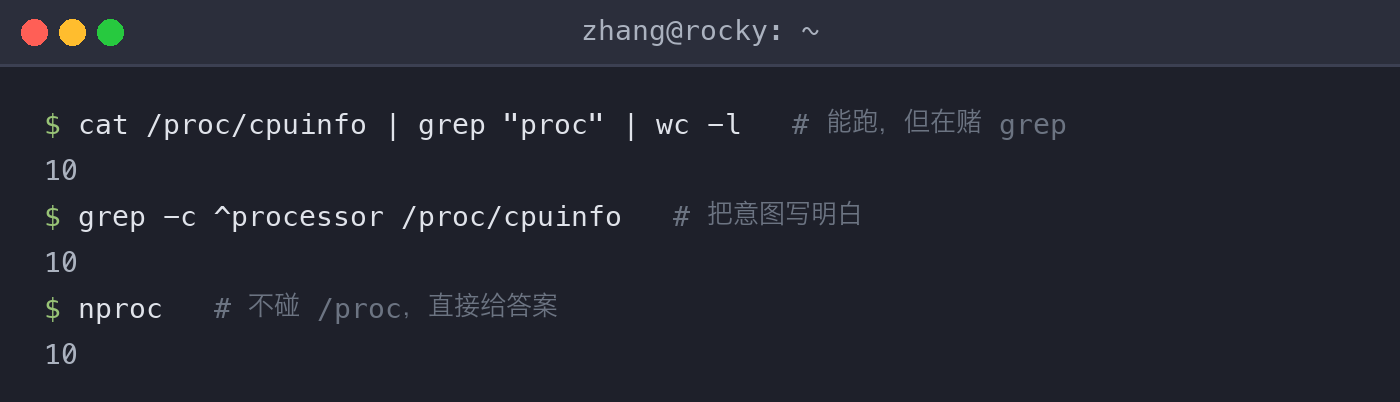
grep "proc"matches every line containing “proc”—it only worked because theprocessorlines in/proc/cpuinfohappened to collide with that prefix. Point it at a different file and the count goes wrong. Since the goal is “count lines starting with processor,” say exactly that:
1 | grep -c ^processor /proc/cpuinfo |
- Even more direct: don’t touch
/procat all:
1 | nproc |
One command, prints the logical core count straight out.
Checking the CPU model, the original looked like this:
1 | cat /proc/cpuinfo | grep "model name" |
The modern way sees everything in one shot:
1 | lscpu |
Model, physical cores, logical cores, architecture, caches—one screen has it all, no more deduplicating “physical id” lines by hand. The old way of counting physical cores was cat /proc/cpuinfo | grep "physical id" | uniq | wc -l; the CPU(s), Socket(s), and Core(s) per socket lines in lscpu output carry the same information.
Checking CPU usage is still top, but for a quick daily load glance, uptime is faster (see the uptime section below).
Memory
The old way:
1 | free -m |
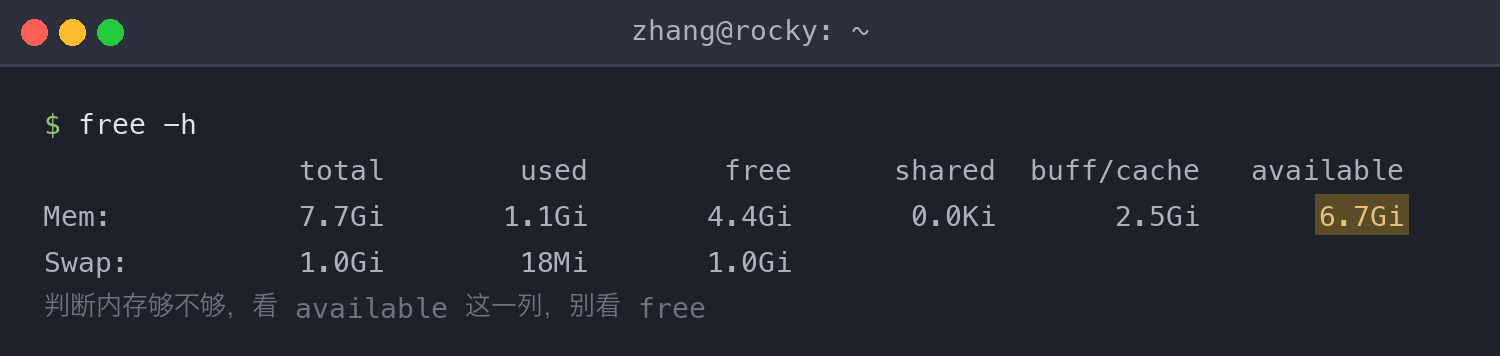
The command itself isn’t wrong; what’s wrong is reading the output without understanding it. In the newer free, line one is mem, line two is swap, and the key is the available column—that’s the real answer to “how much can I still use,” far more reliable than the free column. Does memory that a program allocated and released go back to the free column? No—Linux repurposes it for caching, but that part can be reclaimed at any time, and it all counts toward available. So to judge “is memory enough,” look at available, not free.
1 | free -h |
-h is human-readable: it picks KB/MB/GB units automatically, saving you the mental conversion that -m requires.
Disk
The old way:
1 | df -h |
This one is still correct—nothing to change. Adding one the original post missed:
1 | lsblk |
df shows filesystem usage; lsblk shows the block device tree—which disk sits on which device, how it’s partitioned, where it’s mounted—all clear in one tree. Use lsblk to hunt down “where did my new disk go,” and df for “where did my space go.”
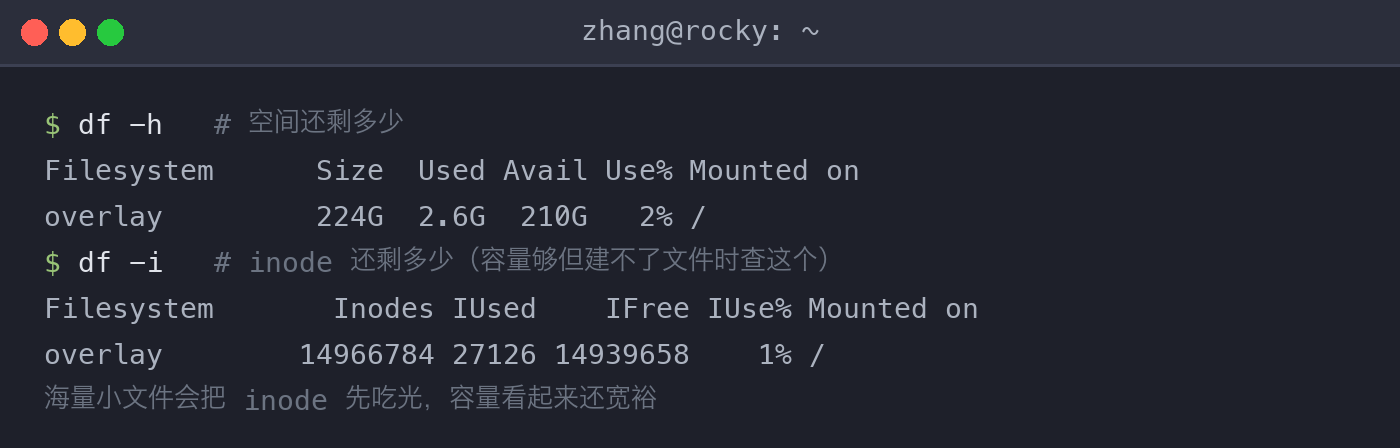
Disks hide one more trap: df -h shows plenty of space left, yet creating a file fails with No space left on device. What you need to check then is inodes, not capacity:
1 | df -i |
Inodes are the filesystem’s “file count quota”; massive numbers of small files (logs, cache fragments) eat the inodes first while capacity still looks plentiful. Put df -h and df -i side by side and this kind of “fake full” is obvious at a glance.
Uptime
The old way (converting /proc/uptime seconds into days, hours, minutes, and seconds):
1 | cat /proc/uptime | awk -F. '{run_days=$1 / 86400;run_hour=($1 % 86400)/3600;run_minute=($1 % 3600)/60;run_second=$1 % 60;printf("系统已运行:%d天%d时%d分%d秒",run_days,run_hour,run_minute,run_second)}' |
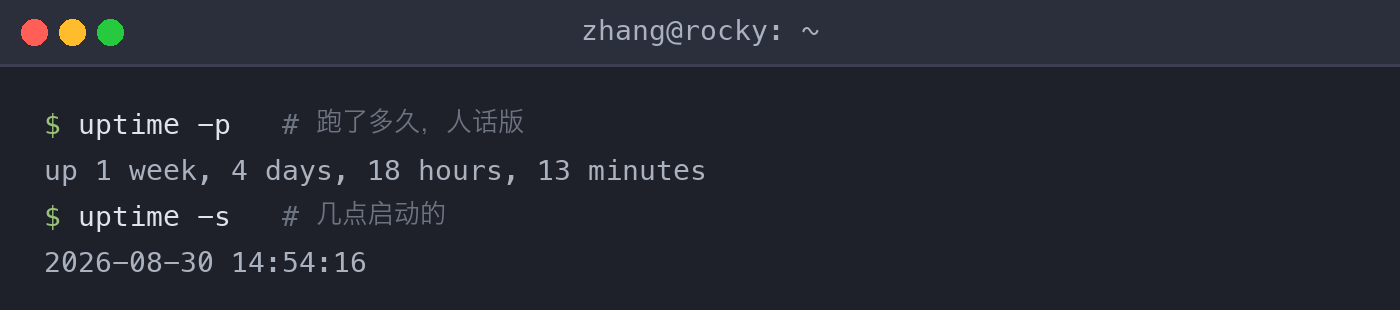
This line is the original post at its most typical: wanting to know how long the system has been up, it writes 40-plus characters of awk arithmetic. For a human-readable answer, one command:
1 | uptime -p |
The output is a format like up 3 days, 4 hours, 12 minutes. For “what time did the system boot”:
1 | uptime -s |
It prints the boot timestamp (e.g. 2026-09-08 10:23:11). On the side, the bare uptime command also shows the 1/5/15-minute load averages—the first place to look when checking “is this machine busy.”
OS Version
The old way:
1 | cat /etc/centos-release |
Two problems: many post-CentOS-7 distributions don’t have this file (/etc/os-release is the cross-distribution standard), and it shows only the version number, not the kernel. The modern way:
1 | hostnamectl |
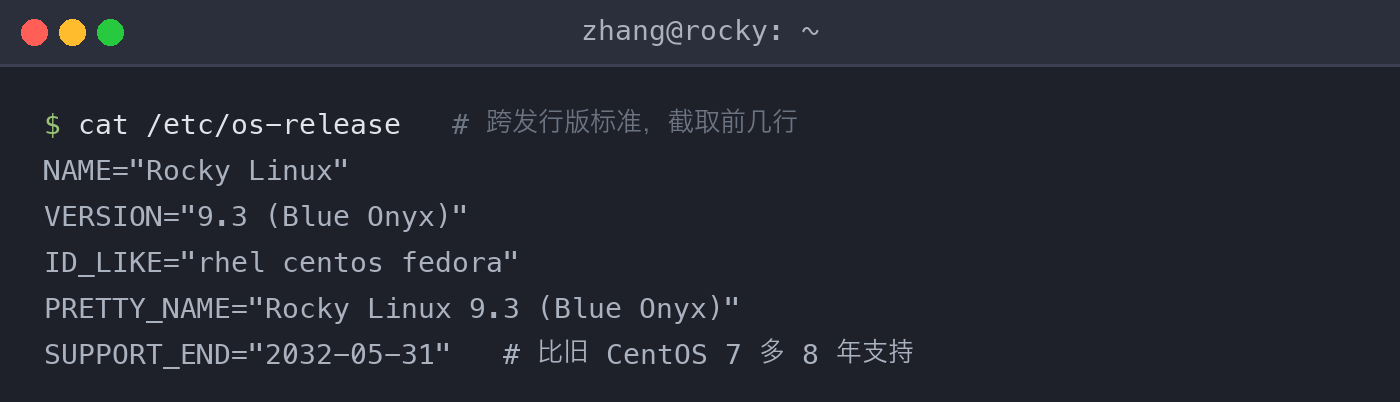
One command: distribution, kernel, hostname, virtualization type—all there. If you only want the one version line:
1 | cat /etc/os-release |
SN Serial Number
The old way:
1 | dmidecode -t system | grep 'Serial Number' |
The approach is fine, but you can fetch just that one field:
1 | dmidecode -s system-serial-number |
-s takes a keyword and returns the value directly, skipping the filtering. Two prerequisites, don’t forget them: it needs root; and on many cloud hosts you can’t get a valid SN (the hypervisor doesn’t pass it through, and the output may be empty or Not Specified)—that’s not the command’s fault.
Cheat Sheet
| What to Query | Modern Command | The Old Way |
|---|---|---|
| CPU overview | lscpu |
cat /proc/cpuinfo + multiple greps |
| Logical cores | nproc |
cat /proc/cpuinfo | grep "proc" | wc -l |
| Memory | free -h (watch the available column) |
free -m (columns unexplained) |
| Disk usage | df -h |
Same as left, unchanged |
| Fake-full inodes | df -i |
Missed by the original |
| Block devices | lsblk |
Missed by the original |
| Uptime | uptime -p / uptime -s |
awk conversion of /proc/uptime |
| OS version | hostnamectl |
cat /etc/centos-release |
| SN number | dmidecode -s system-serial-number |
dmidecode -t system | grep 'Serial Number' |
None of the old commands is “wrong” to the point of not running; the 2024 style just answered simple questions in complicated ways. All of these modern commands are part of the common util-linux/coreutils/procps-ng components—no new dependencies introduced.