IPMI Out-of-Band Management: Remote Power Control and Hardware Status with ipmitool
When a server’s OS crashes and even SSH is unreachable, traditional remote management is helpless. IPMI exists for exactly this scenario: it operates below the operating system, so as long as the machine room still has power, you can check hardware status remotely, power on/off, and install an OS. This post records IPMI’s basic concepts and ipmitool’s common operations; installation and the error behavior in a BMC-less environment were tested in a Rocky 9 container, while remote power operations require a real BMC and were not run.
What IPMI Is
IPMI (Intelligent Platform Management Interface) is a universal hardware management interface standard for monitoring a server’s physical characteristics: temperature, voltage, fans, power supply, chassis intrusion, and so on. Its greatest value is being independent of the CPU, BIOS, and operating system — whether the machine is on or off, the server can be managed as long as it has power.
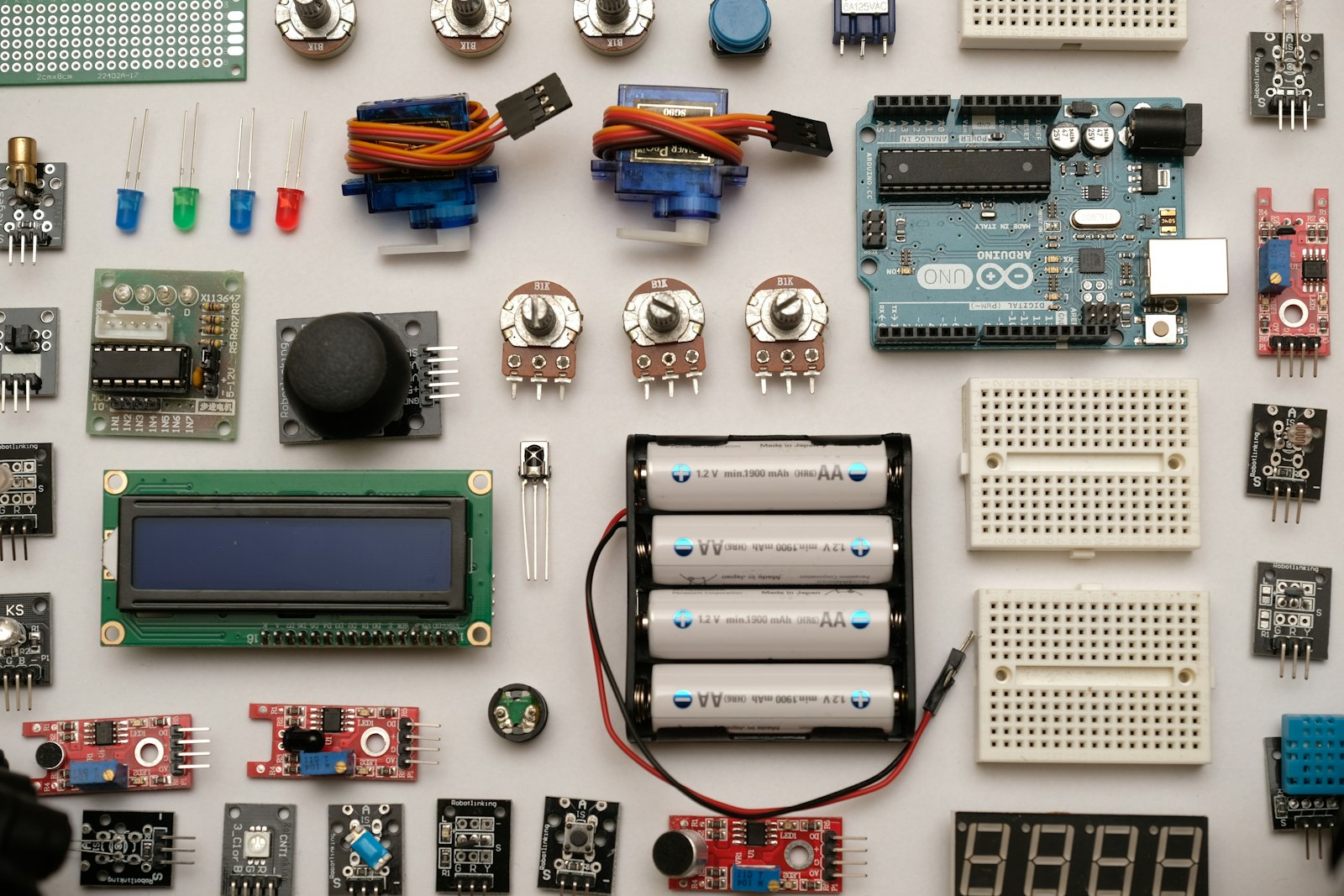
At the core of this system is the BMC (Baseboard Management Controller), an embedded management chip soldered onto the motherboard — the “brain” of platform management. It collects data from motherboard sensors and records event logs, with capabilities covering: serial port access, fault logs and SNMP alerts, System Event Log (SEL) and sensor reading, power control, and text console redirection (for BIOS setup and the system console).
There are two everyday entry points: each vendor’s out-of-band management web UI (Dell iDRAC, HP iLO — all fundamentally BMCs), and the protagonist of this post, the command-line tool ipmitool. Through the web UI you can: power on/off/reboot remotely while the machine is energized, operate the BIOS remotely, install an OS remotely, change the management port’s network configuration, and set up RAID. The command line turns these capabilities into scripts — a hard requirement when onboarding dozens of machines in bulk. (Beyond IPMI, the industry also has the newer Redfish REST API, built on the same line of thinking; ipmitool remains the universal foundation for operating the existing server fleet.)
Prerequisites and Installation
Two prerequisites: first, the motherboard has a BMC (mainstream servers basically all include one; confirm at procurement); second, local monitoring needs kernel OpenIPMI support (Linux ships it — install the package and load the ipmi module).
1 | # CentOS 7 uses yum, Rocky 9 uses dnf; package names are the same |
Tested in a Rocky 9 container: the packages installed normally, ipmitool-1.8.18, OpenIPMI-2.0.36. After installing, confirm the kernel module is loaded: lsmod | grep ipmi should show entries like ipmi_devintf and ipmi_si; if not, run modprobe ipmi_devintf once manually — when local sensor list reports a missing device node, this step is usually what’s missing. Running commands in a container without a BMC neatly shows the two typical errors:

The first error means the local machine has no BMC device node (a machine with OpenIPMI drivers installed and a BMC present will not show it); the second means the remote session failed to establish — check whether the management port IP is reachable and whether IPMI over LAN is enabled. These two errors cover the two failures beginners hit most often; once you can read them, you have crossed the entry threshold of ipmitool troubleshooting.
Core Scenario Cheat Sheet
First a scenario index — jump straight to what you need:
| I want to… | Which command |
|---|---|
| Power on/off / hard reboot remotely | power on / power off / power reset |
| Check power state | power status |
| Check sensors / hardware health | sensor list (no -H locally) |
| Look up historical fault records | sel list |
| Check management-port network config | lan print 1 |
| Change an IPMI user’s password | user set password <id> <new password> |
| Revive a hung management port | mc reset warm |
When operating another machine remotely, -H is the out-of-band management port’s IP, and -U/-P are the IPMI account and password:
1 | # Check power status |
Monitoring your own machine’s sensors needs no -H — just ipmitool sensor list — it goes through the kernel OpenIPMI driver and never leaves the machine. When diagnosing hardware problems, instantaneous values are not enough; you also need history: ipmitool sel list outputs the System Event Log, recording which day and hour the fan misbehaved and who triggered a reboot; sel elist gives a friendlier interpreted view, and after confirming the issue is handled, sel clear empties the log. To find the BMC’s own network configuration (has the management port IP been changed), use ipmitool lan print 1 — no BIOS trip needed; when taking over a machine or suspecting a password leak, first check accounts with user list, then rotate the password with user set password <id> <new password>.
Note: BMC-dependent subcommands like
sel/lan printwere not run; usage comes from the ipmitool(1) manual.sensor listand the-Hremote pair were verified in a BMC-less container down to the “error behavior” level.
Parameter Cheat Sheet
| Parameter | Purpose | Example Value |
|---|---|---|
-H |
out-of-band management port IP | 192.168.1.120 |
-U |
IPMI username | admin |
-P |
IPMI password (stays in command history, see Caveats) | mypassword |
-I lanplus |
select the IPMI v2.0/RMCP+ interface; recommended for remote operations | lanplus |
-f |
read the password from a file; replaces -P in scripts |
/etc/ipmi.pw |
For more subcommands, see man ipmitool.
Caveats
- The management port must have its own strong password and be restricted to the internal network. IPMI privileges are enormous and the standard has a history of repeated critical vulnerabilities; exposing it to the public internet is a major security risk.
power resetis a hard reboot — it does not notify the operating system; use with care on production machines, it is the equivalent of holding down the power button.- The BMC itself can hang too;
mc reset warmrevives the management port remotely, no trip to the machine room needed. - Don’t let passwords sit naked in command history: use a config file or
-fto read the password from a file when scripting; when interactive, clear the history after use. - Clear SEL logs periodically. Once the event log is full, new events cannot be written; run
sel clearduring inspections, exporting important records first. - If the remote session won’t establish, check three things in order: is the management port network reachable; does the firewall allow UDP 623 (IPMI over LAN uses RMCP+ — UDP, not TCP); is lanplus enabled on the BMC side.
Summary
Back to the opening: being unable to SSH in does not mean a trip to the machine room is the only option — IPMI lives below the operating system, and as long as the machine has power, a handful of commands — power on, sensor list, sel list, mc reset warm — cover four tasks: power on/off, check health, look up faults, and revive the management port. Install ipmitool, put the management port’s IP and credentials into your ops notes, and the next midnight alert will thank you.
This article was rewritten from the author’s CSDN blog posts originally published between 2020 and 2024.